
How I Manage All My Tasks Inside Obsidian with the TaskNotes Plugin
I just published a new YouTube video showing how I manage ALL my tasks inside Obsidian using the TaskNotes plugin. No separate app. No context switching. Everything connected.

If you're managing tasks in a separate app, you're splitting your brain across two systems. Your notes live in one place, your tasks in another, and they never talk to each other.
In this article, I want to share how I manage ALL my tasks directly inside Obsidian using the TaskNotes plugin. No separate app. No context switching. Everything in one place, connected to my projects, goals, and ideas.
I just published a new video walking through my complete setup. Let me give you an overview of what's covered and why it matters.
TL;DR
- The TaskNotes plugin turns every task into a real note in your vault
- Each task has metadata, wikilinks, and project connections
- Your tasks become searchable, linkable, and AI-readable
- You can build Kanban boards, calendar views, and custom dashboards with Obsidian Bases
- Custom statuses let you build your own workflow (Backlog, Planned, In Progress, Done, etc.)
- Time blocking and calendar integrations (Google Calendar, Outlook) are supported
- Numerical prefixes on statuses enable easy sorting in Obsidian Bases views
- No separate app needed. Everything stays in your vault
Watch the Video
What's Covered
In this walkthrough, I show you the complete setup I use every day:
- What the TaskNotes plugin does and why it matters
- How tasks become real notes in your vault, with metadata and wikilinks
- Associating tasks with projects and viewing them in the local graph
- Why plain-text tasks change everything for AI integration
- Installing and configuring the plugin step by step
- Setting up task folders and archive folders
- Creating TaskNotes from basic checkboxes
- Adding metadata: status, priority, due dates, reminders, recurring schedules
- Customizing statuses with your own workflow (Backlog → Planned → In Progress → Done)
- Using Obsidian Bases to create table views, Kanban boards, and calendar views
- Time blocking and Google Calendar / Outlook integration
- Searching and filtering tasks using type tags
- Configuring project filters so tasks link to the right project notes
- Using numerical prefixes on statuses for easy sorting
Why This Matters
The real value here isn't just about managing tasks. It's about what happens when your tasks are actual markdown files inside your vault.
Since your tasks are just text files, AI can read them. You can search them. Link them to projects, goals, and ideas. They become part of your connected knowledge base. That's something no separate task app can do. Your tasks don't live in a black box anymore. They're integrated into your thinking environment.
You can build Kanban boards, calendar views, and custom dashboards using Obsidian Bases. You can connect tasks to projects and goals, and see those connections in the graph view. You can filter tasks by project, by status, by type tag.
I use a custom workflow with statuses like Backlog → Planned (Year) → Planned (Quarter) → Planned (Month) → Planned (Week) → In Progress → On Hold → Done → Archived. Each status has a numerical prefix so it sorts correctly in Obsidian Bases. Simple trick, huge difference.
And here's what I really want you to understand: since everything is plain text and stored locally, you own your data. You're not locked into any proprietary system. You can switch tools, write scripts, build automations, or let AI work with your tasks. Try doing that with a proprietary task app.
Getting Started
My recommendation? Keep things simple. Start with the default configuration, create a few tasks, and get comfortable with the basics. Then customize your statuses, set up project filters, and build your Obsidian Bases views. Don't try to do everything at once.
The video covers all of this step by step, from installation to advanced configuration. Whether you're new to Obsidian or you've been using it for years, this will help you rethink how you manage tasks.
Going Further
If you want the full setup without spending hours configuring it, the Obsidian Starter Kit includes the complete TaskNotes configuration, custom statuses, Bases views, and folder structure ready to go:
 Knowledge Forge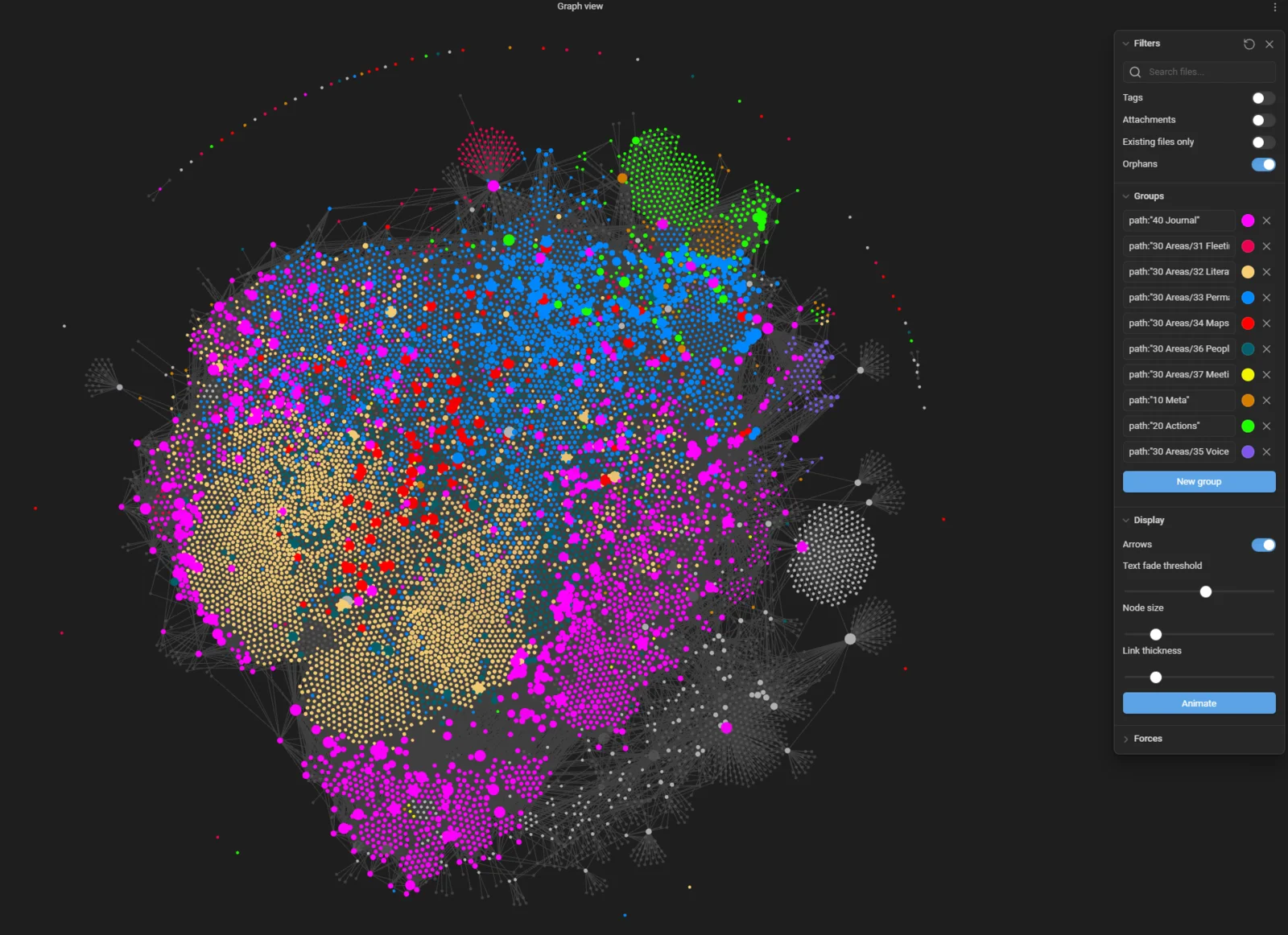
And if you're just getting started with Obsidian, grab the free Beginner's Guide (50+ pages):
 Sebastien Dubois
Want to go deeper into Knowledge Management? Check out the Knowledge Management for Beginners course:

And if you want to join a community of knowledge workers who are building better systems together:
 Sebastien Dubois
Conclusion
TaskNotes is honestly one of the most impactful plugins I use in Obsidian. It keeps everything in one place: integrated, searchable, and AI-compatible. If you're still managing tasks in a separate app, I really want to convince you to give this a try. Your future self will thank you.
That's it for today! ✨
Don't forget to subscribe to my newsletter for weekly content about Knowledge Management, Obsidian, and Zen Productivity.
About Sébastien
I'm Sébastien Dubois, and I'm on a mission to help knowledge workers escape information overload. After 20+ years in IT and seeing too many brilliant minds drowning in digital chaos, I've decided to help people build systems that actually work. Through the Knowii Community, my courses, products & services and my Website/Newsletter, I share practical and battle-tested systems.
I write about Knowledge Work, Personal Knowledge Management, Note-taking, Lifelong Learning, Personal Organization, Productivity, and more. I also craft lovely digital products and tools.
If you want to follow my work, then become a member and join our community.
Ready to get to the next level?
Since you're interested in Obsidian:
- 🚀 Obsidian Starter Kit — Skip weeks of setup with 40+ templates
- 🎬 Obsidian Starter Course — Master Obsidian in 2+ hours
- 📚 KM for Beginners — 10+ hours of structured video lessons
- 🎯 Join Knowii — Community + ALL courses & tools
Found this valuable? Share it with someone who needs it.